Quick Start
If you are new to the tool, follow this sequence to create your first usable plan quickly.
- Open the planner: go to swimlane.html.
- Add tasks: either right-click a lane on the chart or click Show Task Table and add rows.
- Set lane ownership: choose Client, Contractor, or Project Milestone.
- Add dependencies: set Depends On Task and lag values where needed.
- Save native: File -> Save Local Planner to create a .swimlane source-of-truth file.
Recommendation: save to .swimlane first, then export Excel as a distribution copy when needed.
Interface Map
The planner is organized around a small number of high-value controls.
Top Menus
File, Export, View, and Tutorials contain all major actions: open/save, PNG/Excel export, task table toggle, and onboarding.
Status Line
The status line reports the latest result for actions such as imported rows, save success, or dependency errors.
Chart Canvas
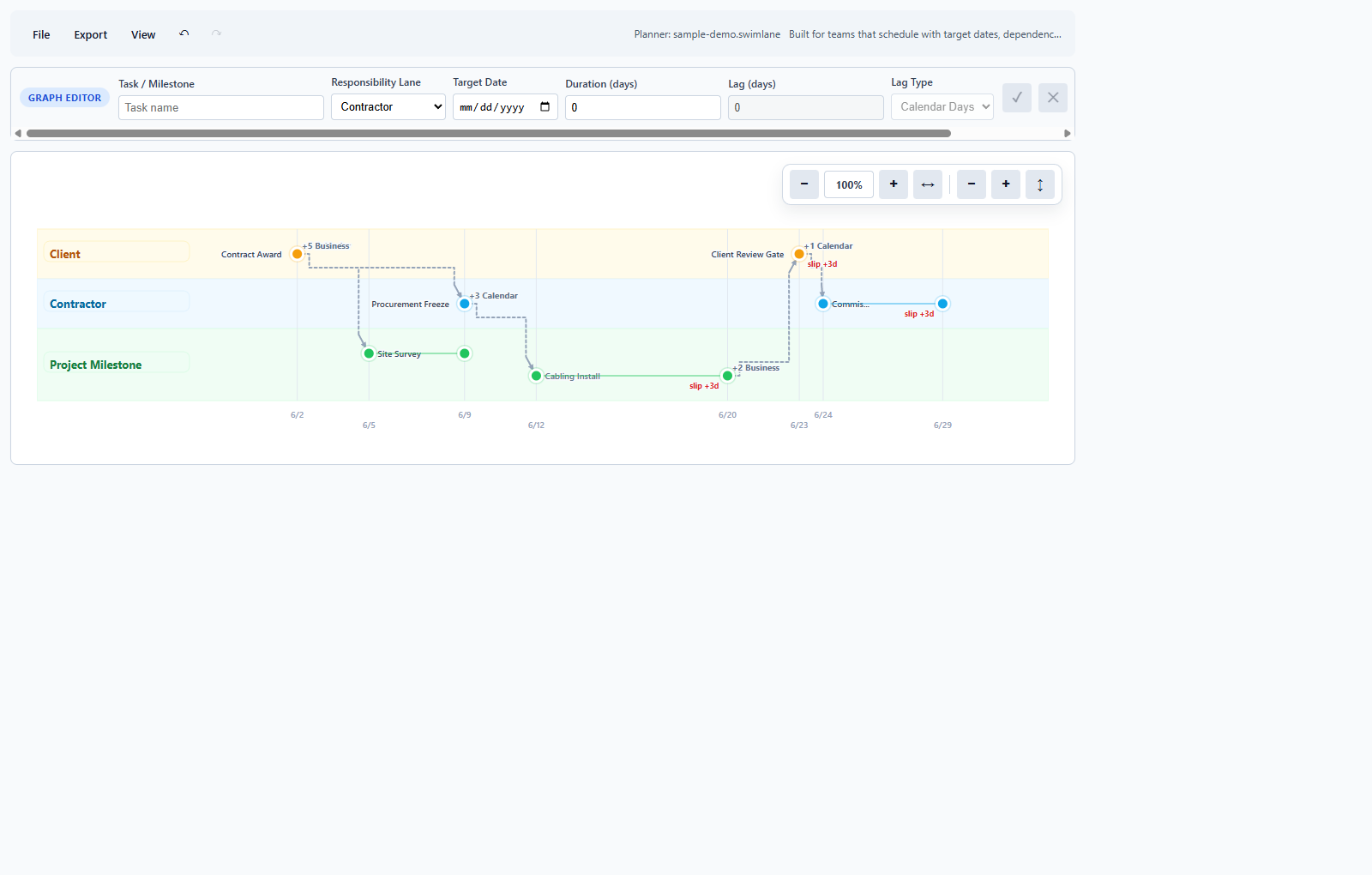
The chart shows lane ownership, start/end markers, and dependency links so schedule movement is visible immediately.
Task Table Modal
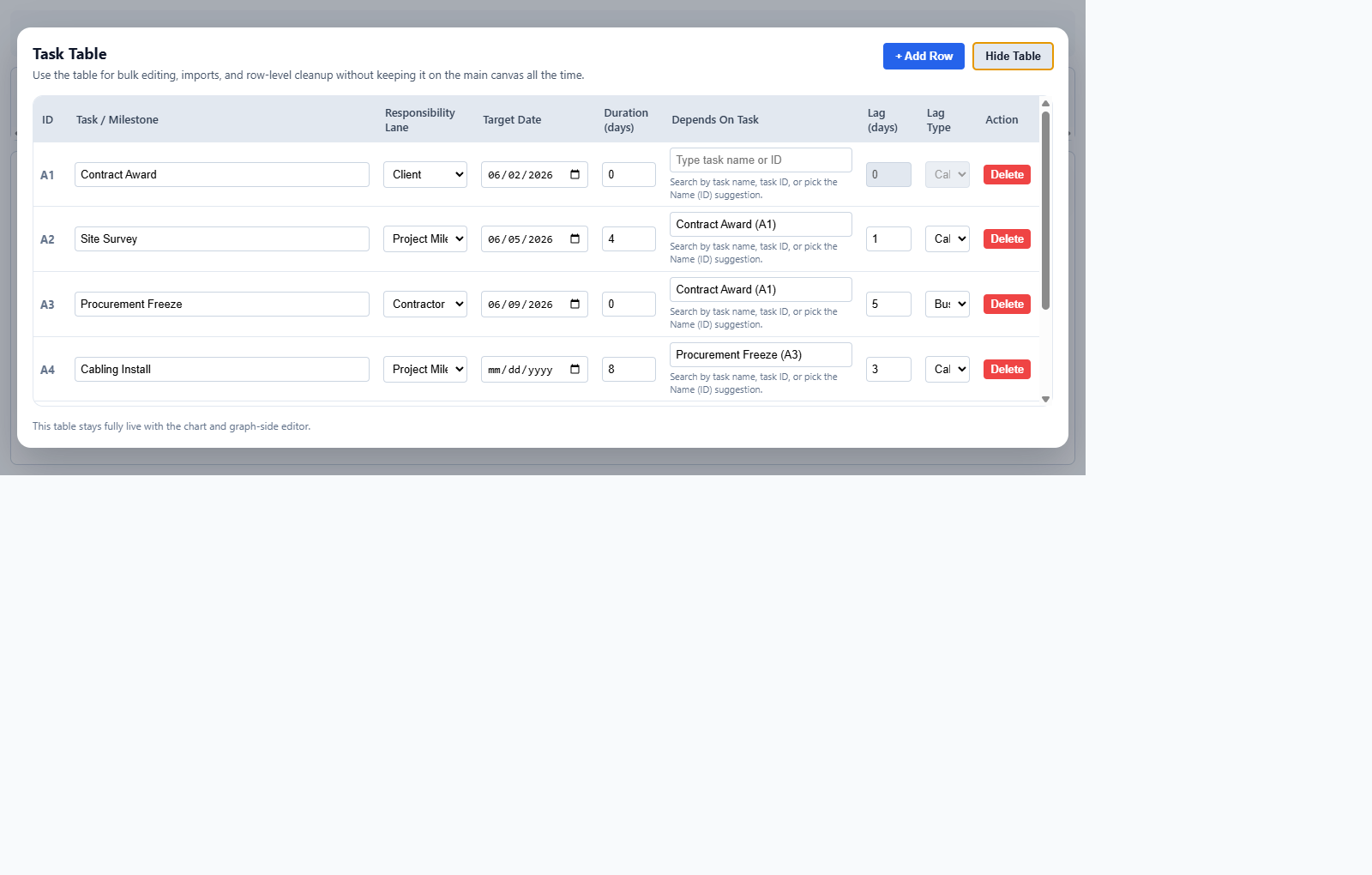
Use this for fast bulk editing of task names, dates, durations, and dependency reference fields.
Create Tasks
Method A: Chart-first task creation
- Right-click inside a lane (Client, Contractor, or Project Milestone).
- Choose Create Task Here.
- Move the pointer right to define duration and click to place the finish node.
- Select the new task and edit details in the graph editor toolbar.
Method B: Table-first task creation
- Open View -> Show Task Table.
- Click + Add Row.
- Set task name, lane, target date, and duration.
- Close the table to verify chart placement and dependency lines.
If a task name is empty or invalid fields are entered, the status line will warn you. Fix the field and continue.
Dependencies and Lag
Dependencies tell swimlane which task must finish before another can start. Lag adds delay between those tasks.
Set dependencies in the table
- In Depends On Task, type a task ID, task name, or Name (ID) label.
- Set Lag (days) for the waiting period after predecessor completion.
- Choose lag type: Calendar Days or Business Days.
Set dependencies on the chart
- Select a task point, click Pick Predecessor, then click the predecessor task point.
- When prompted, choose lag values and save the dependency.
Calendar Days
Lag counts every day continuously, including weekends.
Business Days
Lag skips weekends to reflect working-day sequencing.
Editing and View Modes
Graph editor actions
When a task is selected, use toolbar actions to adjust fields, clear links, pick predecessor, or delete the task.
Client View
Switch to client view to focus storytelling. It helps isolate related tasks and dependencies for stakeholder communication.
Zoom controls
Use horizontal and vertical zoom independently. Fit Width and Fit Height are quick reset tools during large-plan navigation.
Open, Save, Cloud, and Export
Local native workflow (recommended)
- File -> Open Local Planner / Import Excel to load existing work.
- File -> Save Local Planner for normal updates.
- File -> Save Local Planner As for branching or version snapshots.
Cloud workflow
- Sign in with Google (if cloud auth is enabled on your server).
- Use Open Cloud Planner or Save Cloud Planner from File menu.
- Use Save Cloud Planner As when creating a new cloud copy.
Export workflow
- Export Excel Copy for workbook handoff.
- Export PNG for slide decks and status reports.
Excel Import and Export
swimlane supports Excel for compatibility, while .swimlane remains the best format for preserving planner-native state.
Import tips
- Prefer using the provided Excel template to avoid mapping errors.
- Keep task references in consistent Name (ID) form when possible.
- After import, check status notes for skipped rows or repaired dependencies.
Export tips
- Export Excel when another system requires workbook exchange.
- Immediately save .swimlane as your internal master plan state.
Best Practices
Use clear task naming
Name tasks so dependencies remain readable in both chart labels and table references.
Avoid over-linking
Use dependencies only where real execution constraints exist.
Save before risky edits
Create a Save As checkpoint before major resequencing work.
Use tutorials for onboarding
The Tutorials menu can start an interactive product walkthrough at any time.
Troubleshooting
Dependency not recognized
Check spelling, task ID format, or use Name (ID) suggestions in the dependency field.
Cloud buttons are disabled
Cloud auth may be disabled on your server or you may not be signed in yet.
No rows imported from Excel
Ensure task rows exist in the Tasks sheet and required columns are populated.
Saved changes look different in chart
This usually means dependency logic or lag recalculated the schedule after field edits. Re-check predecessor and lag entries.
FAQ
Should I use .swimlane or .xlsx as my main file?
Use .swimlane as your primary planning file. Use .xlsx only for handoffs or external requirements.
Can I build the whole schedule from the chart only?
Yes. You can create tasks and link dependencies from the chart. The table is optional for bulk editing speed.
What is the difference between target date and slip?
Target date is your authored baseline intent. Slip is calculated schedule movement caused by dependencies, durations, and lag.
Can one task depend on multiple predecessors?
Yes. Enter multiple dependency references separated by semicolons where applicable.
Does business-day lag include weekends?
No. Business-day lag skips weekends. Calendar-day lag counts every day.
How do I stop the tutorial bubbles?
Click End Tutorial in the bubble at any step or press Escape.
Can I export what is visible on screen?
Yes. Use Export PNG to capture the current visible chart context.
What if I imported a workbook and want clean native state?
After import, immediately use Save Local Planner to create a native .swimlane file and continue from there.
Need this as a printable team SOP later? This page can be exported to PDF directly from your browser print dialog.